The Kronos Homes Client Area is a private space where you can view relevant information about your property and carry out various procedures online.
Access is through the following web address:
https://areacliente.kronoshomes.com/
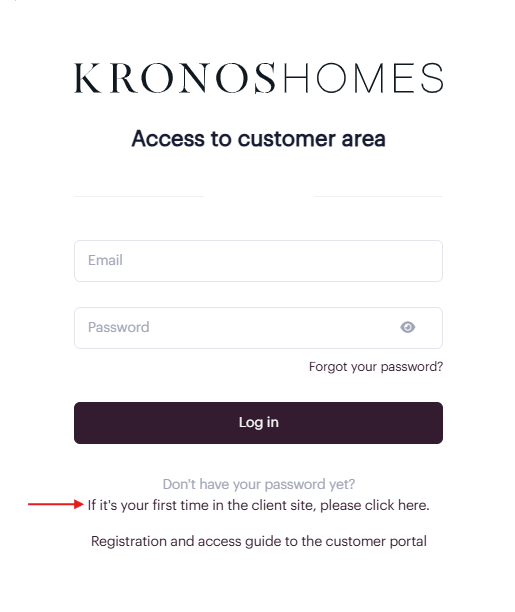
Below we explain how to access according to your situation.
If this is your first time accessing, you must activate your account by following these steps:
Access the screen that allows you to activate your account for the first time via the link at the bottom of the Login panel or access from the following link:
A screen will appear requesting the email address used to make your property reservation with Kronos Homes, and you will be asked to set your access password on this same screen.
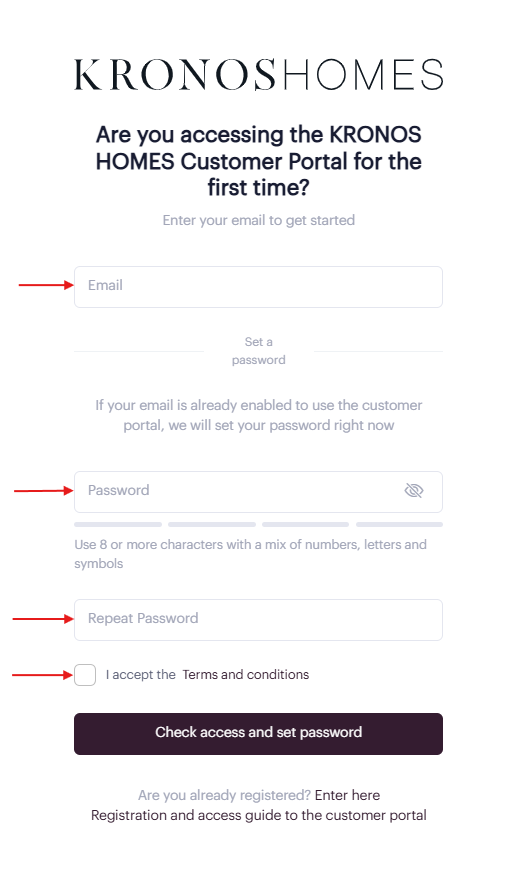
After verifying that your email is in our systems, you will receive an email at the address provided with a confirmation link required to activate your client area account.
Once these steps are complete, your account will be activated and you can access the portal whenever you need to.
If you have already accessed before and your account is activated:
Go to:
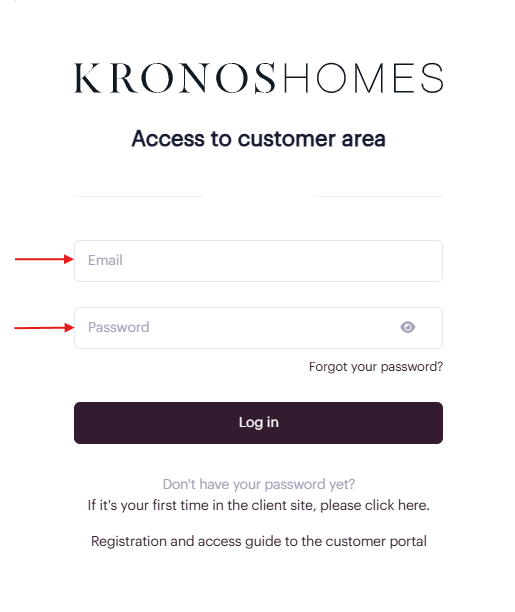
If you have two-factor authentication enabled, the system will ask you for the validation code. Enter it and continue.
If the details are correct, you will access your Client Area directly.
If you have forgotten your password, you can reset it by following these steps:
Go to: /login
Select the option "Forgotten your password?".
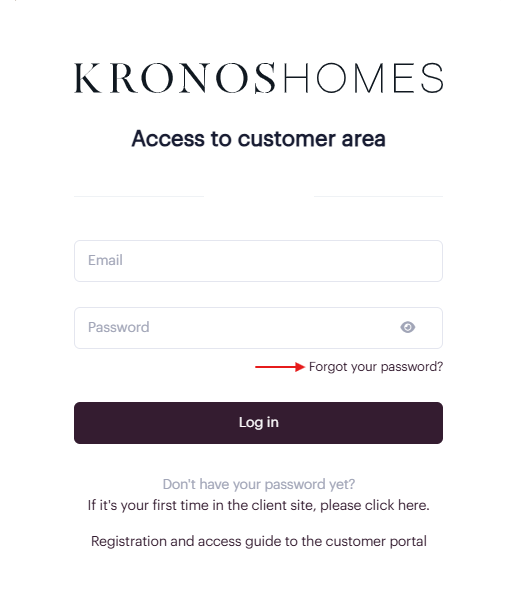
Enter the email address you are registered with.
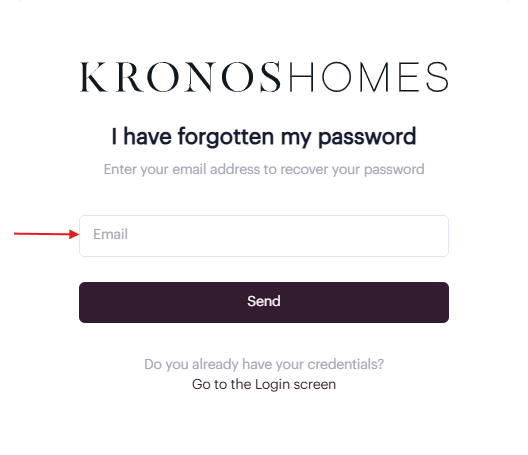
Confirm the request.
You will receive an email with a link to reset your password.
Enter your new password.
Confirm it and save the changes.
Once the process is complete, you can access the Client Area again with your new credentials.